

Team
From the Team section you can invite users to your project and manage their permissions. Each member has an assigned role that determines what actions they can perform within the project. Access this section from Settings > Project > Team.Invite users
Only administrators can invite new users to the project.1
Click Invite Users
In the upper right corner of the members table, click Invite Users.
2
Enter the email and select a role
Type the user’s email address and select the role you want to assign (Administrator, Member, or Reader).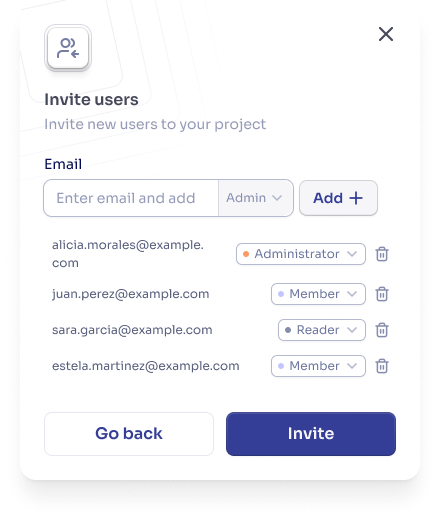
3
Send the invitation
The user will receive an email with a link to join the project.
4
User accepts
Once the invitation is accepted, the user will appear in the members table with the assigned role.
Manage members
Administrators can perform the following actions on project members:- Change the role of a member (between Administrator, Member, and Reader).
- Remove a member from the project.
Roles and permissions
Diga uses a role-based access control (RBAC) model. Roles are assigned per project, meaning the same user can have different roles in different projects.Administrator
Full access to all project resources and settings.- Agent management (create, modify, delete).
- Team member management (invite, change roles, remove).
- Phone number management (buy, configure, release).
- Billing and subscription management.
- API key and integration management.
- Full access to analytics and logs.
Member
Read-only access to most resources, with the ability to operate existing agents.- View agents and their configurations.
- Make calls with project agents.
- View calls, transcriptions, and recordings.
- View and create contacts.
- Access reports and statistics.
Members cannot create or modify agents, manage the team, access billing, or configure integrations or API keys.
Reader
Minimum read-only access, limited to viewing analytics and call logs.- View the home dashboard (general analytics).
- View call logs with transcriptions.
Readers cannot view agents, contacts, phone numbers, knowledge bases, or any other project section. This is the most restrictive role available.
Detailed permissions
Project management
Project management
Agent management
Agent management
Dashboard and analytics
Dashboard and analytics
Call management
Call management
Phone number management
Phone number management
Contact management
Contact management
Team members
Team members
Billing
Billing
API keys and integrations
API keys and integrations
Which role to assign?
Administrator
For those who need full control: business owners, project managers, technical administrators, or IT staff.
Member
For those who need to operate without modifying: sales agents, support staff, or call center operators.
Reader
For those who only need to review results: supervisors, executives, or stakeholders who review metrics and call logs.
Best practices
Apply the principle of least privilege
Apply the principle of least privilege
Assign users the minimum access level necessary. Start with the Reader role if they only need to view data, use Member if they need to operate, and elevate to Administrator only when essential.
Keep at least two administrators
Keep at least two administrators
Avoid depending on a single administrator. If that person is unavailable, no one will be able to manage the project.
Review members regularly
Review members regularly
Periodically audit who has access and remove members who no longer need it.
FAQ
Are roles global or per project?
Are roles global or per project?
Per project. You can be an administrator in one project and a member in another.
Can I create custom roles?
Can I create custom roles?
Currently Diga offers three fixed roles: Administrator, Member, and Reader. Custom roles may be available in future versions.
What happens if I'm the last administrator and want to leave the project?
What happens if I'm the last administrator and want to leave the project?
You must promote another member to administrator before you can leave.
Are users notified when their role changes?
Are users notified when their role changes?
Yes, users receive a notification when their role changes in a project.