

Only project administrators can create, view, and manage API keys. See the Team page for more information about roles and permissions.
Overview
The main view shows a table with all API keys in the project. For each key you can see:- Name of the key
- Key ID
- Key (masked for security)
- Creation date
- Key permissions (restricted or unrestricted)
Create an API Key
1
Click Create API Key
In the upper right corner, click Create API Key.
2
Enter a name
Type a descriptive name to identify the key (for example, “CRM_Query” or “Booking_App”).
3
Configure restrictions
Decide whether to restrict the key’s permissions:
- Unrestricted: The key has full access to all API resources.
- Restrict key: Enable the toggle to configure granular permissions per resource.
4
Save the key
Click Save. The key will be generated and a modal will appear with the complete API Key.
Restrict permissions
When you enable the Restrict key toggle, you can configure the access level for each API resource. Each resource has three permission levels: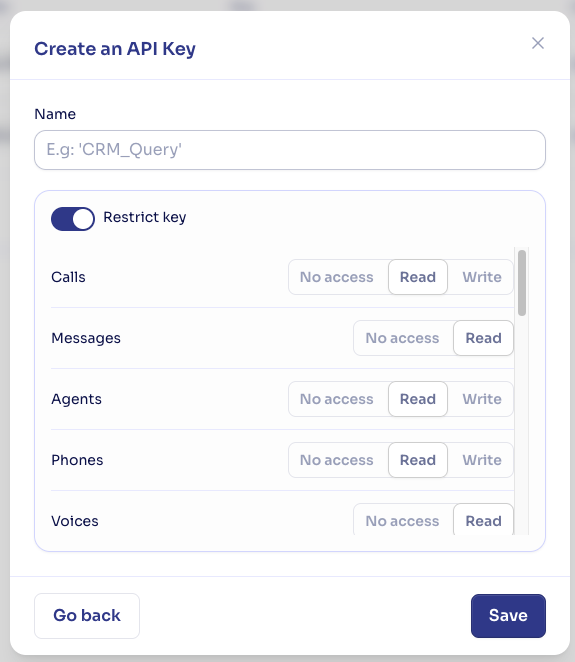
Available resources
The resources you can configure permissions for are:Communication
Communication
- Calls — Phone call management
- Messages — Sending and receiving messages
- Transcriptions — Access to call transcriptions
- Recordings — Access to audio recordings
Agent configuration
Agent configuration
- Agents — Agent creation and configuration
- Conversational paths — Conversational path management
- Knowledge bases — Knowledge base management
- Tools — Call tools
- Voices — Voice configuration
- Integrations — External integration management
- Webhooks — Webhook configuration
Contacts and data
Contacts and data
- Contacts — Contact management
- Statistics — Access to analytical data
- Verifications — System verifications
Administration
Administration
- Phones — Phone number management
- Members — Project team management
- Billing — Billing and subscription information
- API Keys — Management of other API keys
- Notifications — Notification configuration
Delete an API Key
- In the keys table, click the actions button for the key you want to delete.
- Select Delete.
- Confirm the action in the confirmation modal by clicking Delete.
Best practices
Always restrict your keys
Always restrict your keys
Avoid using unrestricted keys. Assign each key only the permissions it needs to function. This limits the impact if a key is compromised.
Use descriptive names
Use descriptive names
Name keys according to their use (for example, “CRM_Production”, “Mobile_App_Staging”). This makes it easy to identify which key corresponds to each application.
Rotate keys periodically
Rotate keys periodically
Create new keys and delete old ones regularly. This reduces the risk of unauthorized access with keys that may have been leaked.
FAQ
How many API keys can I create?
How many API keys can I create?
There’s no fixed limit on the number of keys you can create per project.
Can I edit the permissions of an existing key?
Can I edit the permissions of an existing key?
Yes. You can edit a key’s name and permissions at any time from the keys table. The key’s secret value never changes and is never shown again, so updating permissions doesn’t require regenerating the key.
What happens if I lose an API key?
What happens if I lose an API key?
It’s not possible to recover a key once the creation modal is closed. You’ll need to create a new key and update the configuration in your applications.
Who can view and manage API keys?
Who can view and manage API keys?
Only users with the Administrator role in the project can access the API Keys section.