

Overview
The main view shows a table with all documents and knowledge bases in the project. For each entry you can see:- Name and size of the document or base
- Type (file, URL, text, knowledge base)
- Date created
Add documents
Click Add Documents in the upper right corner. Select the type of content you want to add: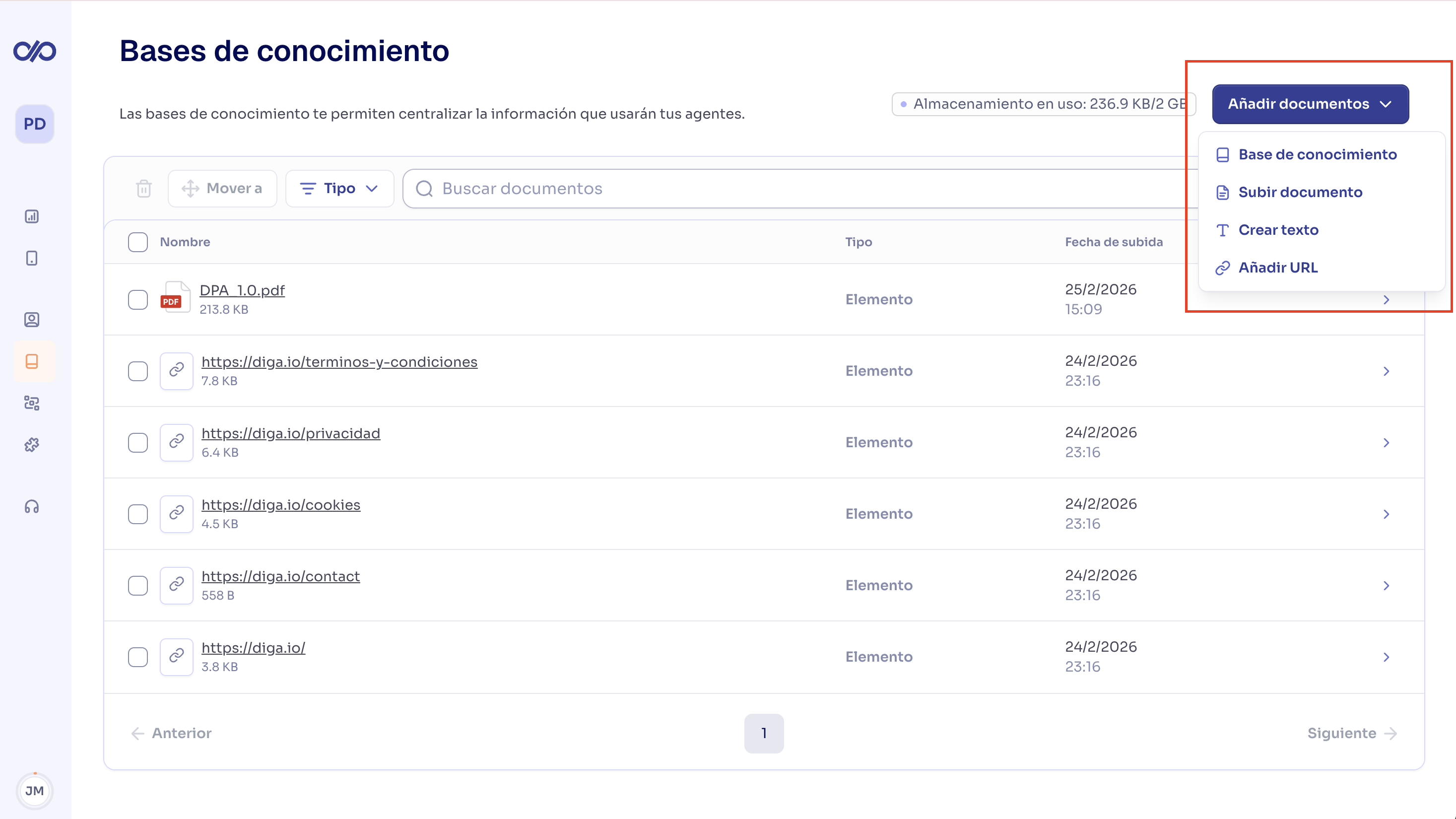
Upload files
Supported file formats are:- PDF (
.pdf) - Word (
.docx) - Markdown (
.md) - Plain text (
.txt) - HTML (
.html)
1
Select File
In the add documents modal, choose the File option.
2
Select file type
Choose from the available formats (PDF, Word, Markdown, etc.).
3
Upload the file
Click the upload area or drag the file. Configure additional options if needed.
4
Select the knowledge base (optional)
Choose the knowledge base the file will belong to. If you don’t select any, the document will be added independently and you can organize it into a base later.
5
Save
Click Save to upload and process the file.
Add a URL
When adding a URL you can choose between two modes: Single URL or Sitemap. Single URL — Import the content of a single web page.1
Select URL
In the add documents modal, choose the URL option and make sure the Single URL tab is active.
2
Select the knowledge base (optional)
Choose the destination knowledge base. If you don’t select any, the document will be added independently.
3
Enter the address
Type or paste the web page URL.
4
Save
Click Save. The system will automatically extract the content from the page.
1
Select URL and switch to Sitemap
In the add documents modal, choose the URL option and click the Sitemap tab.
2
Select the knowledge base (optional)
Choose the destination knowledge base. If you don’t select any, the documents will be added independently.
3
Enter the site URL
Type the website URL. The system will look for the sitemap and extract the available pages.
4
Select the pages
Click Continue. A list will appear with all pages found in the sitemap. Check the ones you want to import or use Select all to select them all.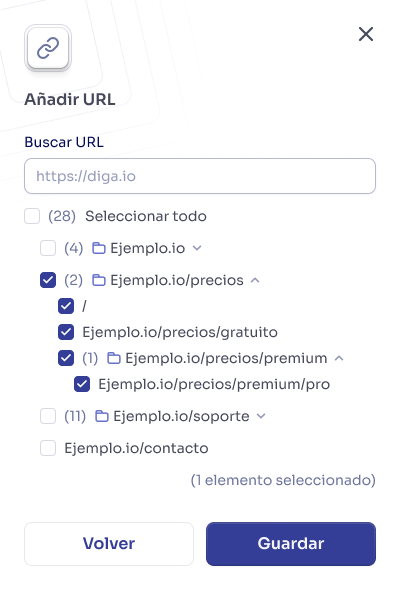
5
Save
Click Save. One document will be created for each selected page.
Create a text
1
Select Text
In the add documents modal, choose the Text option.
2
Enter the content
Write a name for the document and add the content in the text field.
3
Select the knowledge base (optional)
Choose the destination knowledge base. If you don’t select any, the document will be added independently.
4
Save
Click Save.
Create an empty knowledge base
If you want to create the structure first and add documents later:- Click Add Documents.
- Select Knowledge Base.
- Enter a name for the base.
- Click Save.
Inside a knowledge base
Click a knowledge base to access its content. Inside you’ll find a table with all documents it contains:- Name and size of the document
- Type (file, URL, text)
- Date created
- Add documents to the base using the button in the upper corner.
- View the content of a document by clicking on it. Depending on the type, you’ll see the full text, the file to download, or the source URL.
- Move documents to another knowledge base.
- Delete documents individually from the base.
When you add a document to a knowledge base that’s already linked to an agent, the document is processed automatically and the agent will have access to the new content once processing is complete.
Move items to another base
You can move one or more documents from one knowledge base to another to reorganize your content without having to delete and re-upload files.1
Select the items
Inside the knowledge base, check the boxes of the documents you want to move.
2
Click Move
In the action bar that appears when selecting items, click Move.
3
Choose the destination base
A modal will open with the list of available knowledge bases in the project. Select the base you want to move the documents to. You can also choose No knowledge base to unlink them from any base.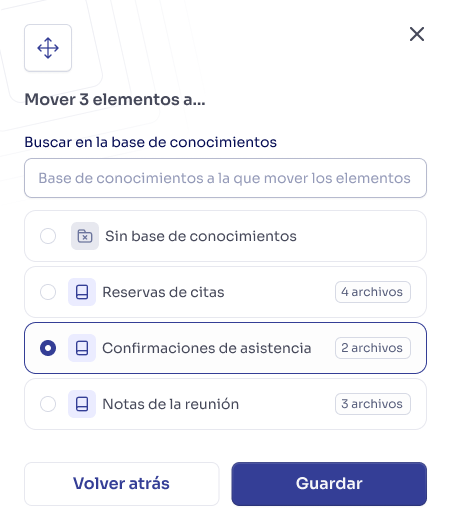
4
Confirm the move
Click Save. The documents will be moved to the selected base.
If the destination base is linked to an agent, moved documents will be processed automatically and will be available for that agent.
Delete a knowledge base
- Access the knowledge base you want to delete.
- Click the options menu.
- Select Delete knowledge base.
- Confirm the action in the confirmation modal.
Link bases to agents
Once created, knowledge bases are linked to agents from each agent’s configuration. You can link the same base to multiple agents and an agent can have multiple linked bases.Knowledge bases in agents
Learn how to link knowledge bases to your agents and configure inheritance in conversational paths.
Limits
The total storage available for knowledge bases (RAG Storage) depends on your subscription plan. See the Plans and Pricing page for your plan’s limits, and Settings > Usage to see how much space you’re currently using.
Best practices
Include short texts directly in the prompt
Include short texts directly in the prompt
If the content is less than 500 bytes (approximately a short paragraph), it’s more efficient to include it directly in the agent’s prompt instead of creating a document in a knowledge base. Reserve bases for more extensive content where the agent needs to search for relevant information.
Organize by topic
Organize by topic
Create separate knowledge bases by area (products, policies, FAQs) instead of one single base with everything. This makes maintenance easier and allows you to link only relevant information to each agent.
Keep information up to date
Keep information up to date
Periodically review the content of your bases to ensure the information is current. An agent with outdated information creates a poor experience.
Use descriptive names
Use descriptive names
Name your bases and documents clearly (for example, “Return Policy 2025” instead of “Doc1”). This makes management easier when you have multiple bases.
Prefer structured text
Prefer structured text
Documents with headings, lists, and well-defined sections are easier for the agent to query than long blocks of unformatted text.
FAQ
Can I use the same knowledge base in multiple agents?
Can I use the same knowledge base in multiple agents?
Yes. A knowledge base can be linked to multiple agents within the same project simultaneously.
What happens if I delete a document from a base linked to an agent?
What happens if I delete a document from a base linked to an agent?
The agent will immediately lose access to that document.
Can I edit an already uploaded document?
Can I edit an already uploaded document?
Files and URLs cannot be edited directly. If you need to update the information, delete the document and upload a new version.
How long does it take to process a document?
How long does it take to process a document?
Processing is usually fast, but depends on the document size.