

What are Templates?
Templates are pre-configured workflows you can copy to your project with a single click. Each template includes the trigger, actions, and logic needed for a specific use case. You just need to fill in the variables (like API keys or IDs) and you’re ready to go.When you copy a template, an independent copy is created in your project. You can modify it freely without affecting the original template.
Using a Template
1
Access the templates
From the Workflows section of the dashboard, click Templates to see the catalog of available templates.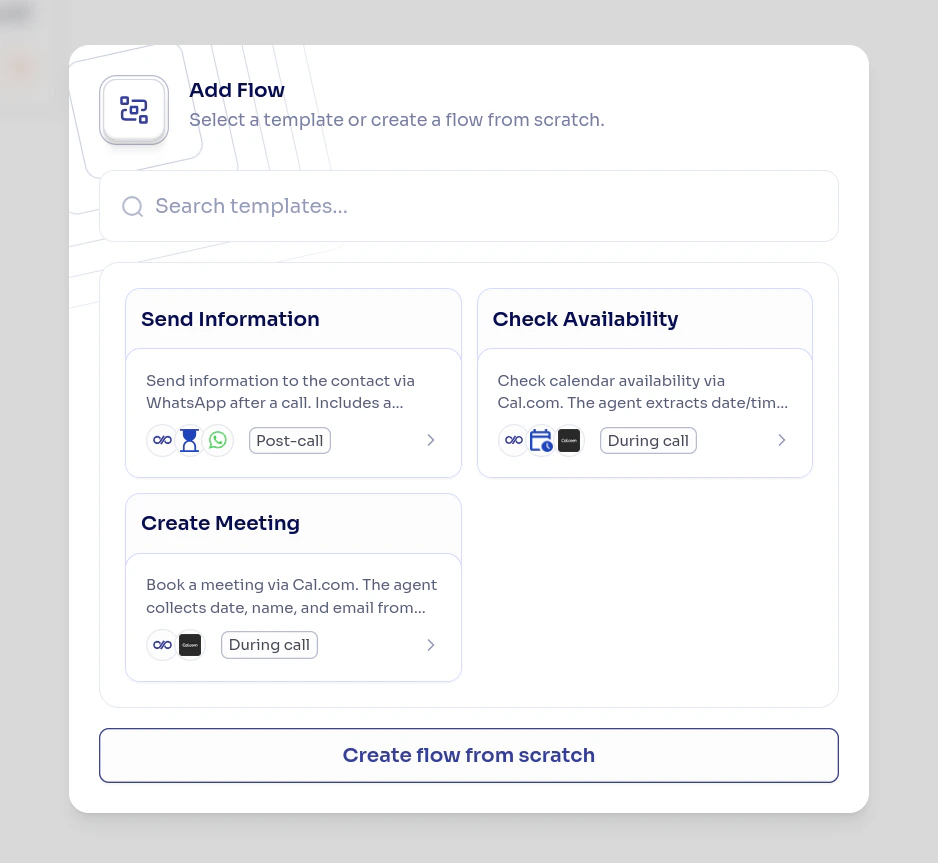
2
Select a template
Click on the template you want to use to see its details: what it does, which pieces it uses, and what variables you need to configure.
3
Copy the template
Click Use Template to create the workflow in your project. The workflow will be created in a disabled state so you can review it before activating it.
4
Configure the variables
Each template may have variables you need to fill in before copying. For example:
- An API key to connect with an external service
- A webhook URL
- A Slack channel ID or Google spreadsheet ID
5
Configure the connections
If the template uses pieces that require authentication (Gmail, Slack, HubSpot, etc.), you’ll be asked to configure the necessary connections. This authorizes the piece to access your account on the service.
6
Review and enable
Review that the configuration is correct and publish it. Once published, enable it so it starts executing.
Modifying a Copied Template
Once copied, the template is a regular workflow that you can modify however you want:- Add or remove actions
- Change the condition logic
- Adjust the data sent to each service
- Add additional steps
Next Steps
Create workflows from scratch
Learn to build custom workflows step by step.
Assign workflows to agents
Connect your workflows with agents to activate them.