

To learn how to create and manage knowledge bases, see the knowledge bases guide.
In single prompt agents
In a single prompt agent, knowledge bases are assigned from the agent’s Customization tab, within the Knowledge Bases section.1
Open the Knowledge Bases section
Access the agent, go to the Customization tab and expand the Knowledge Bases section.
2
Link documents
Click the Link Documents dropdown. A list will appear with the documents and knowledge bases available in the project. You can search by name using the search field.Select the documents or bases you want to link. You can select multiple at once and they will be copied automatically.
Add new content
The knowledge base control links existing documents and bases; it does not create new content inline. To add new files, texts, or URLs, go to the Knowledge bases section and create them there. They will then be available to link from this dropdown. When no knowledge bases exist yet, the empty state links you directly to the Knowledge bases section so you can create your first one.In conversational path agents
Conversational path agents offer greater flexibility with knowledge bases thanks to an inheritance system between levels: the agent’s global level and the individual level of each node.Global level (agent customization)
When you assign knowledge bases from the agent’s Customization tab, they apply to all nodes in the conversational path. The agent will have access to this information at any point in the conversation. The configuration is identical to a single prompt agent: expand the Knowledge Bases section, use the Link Documents dropdown to select documents.Node level
Within the Node tab, in each conversation node’s settings, you’ll find two ways to provide specific information: Context knowledge A free text field where you can write relevant information you want to be available only in that node. It’s useful for specific data that doesn’t need a full document.Example: “Business hours are Monday to Friday, 9:00 AM to 6:00 PM. Weekend service is not available.”Node knowledge bases Each node has its own Knowledge Bases section with the Link Documents dropdown. Documents linked here are added to those inherited from the global level.
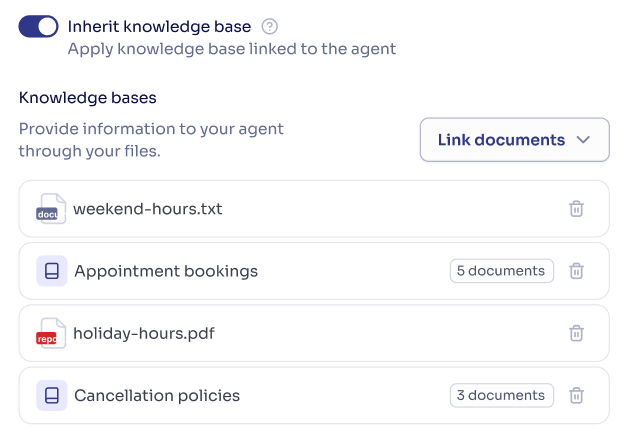
Knowledge base inheritance
By default, each node inherits the knowledge bases assigned at the global level. This means you don’t need to configure bases in each node individually. If a node doesn’t need the global knowledge bases, you can disable the Inherit knowledge toggle in the node’s settings. When disabled:- The node will no longer have access to global knowledge bases.
- It will only use bases linked directly to the node itself (if any).
The Inherit knowledge toggle only appears in nodes when there is at least one knowledge base assigned at the agent’s global level. If no global bases are configured, this control is not shown.
Best practices
Use the global level for general information
Use the global level for general information
Assign bases at the global level that apply to the entire conversation: company data, general policies, FAQs. Reserve node-level bases for information specific to that moment in the flow.
Use 'Context knowledge' for specific data
Use 'Context knowledge' for specific data
If you only need the node to know a specific piece of data (a schedule, an address, a price), use the text field instead of creating a full document.
Don't overload with information
Don't overload with information
Assign only the necessary bases at each level. Too much information can cause the agent to lose focus on what’s relevant for each moment of the conversation.
Disable inheritance wisely
Disable inheritance wisely
Only disable inheritance when the global information isn’t relevant for that node. In most cases, keeping inheritance active and adding specific bases is the best option.
Next steps
Manage knowledge bases
Create, organize, and manage your project’s knowledge bases.

Conversational paths
Learn to build flows with nodes and transitions.