> ## Documentation Index
> Fetch the complete documentation index at: https://docs.diga.io/llms.txt
> Use this file to discover all available pages before exploring further.
# Netelip - Import Number
> Step-by-step guide to connect your Netelip account via SIP trunking
## Steps
We'll start by purchasing a phone number within Netelip. Once it's configured, we can import it very simply into Diga.
To do so:
1. Log in to your Netelip account.
2. Select services in the sidebar or access through the settings gear icon that you'll see moving in the upper right corner.
3. Select *Phone Numbering* from the menu.
4. Within phone numbering, select *Manage*.
5. Click on acquire within the options you'll see at the top of the table.
In the following video, you can see step by step how to buy a number on Netelip:
You've purchased the number, now you need to forward that number to Diga via SIP Trunking.
To do so:
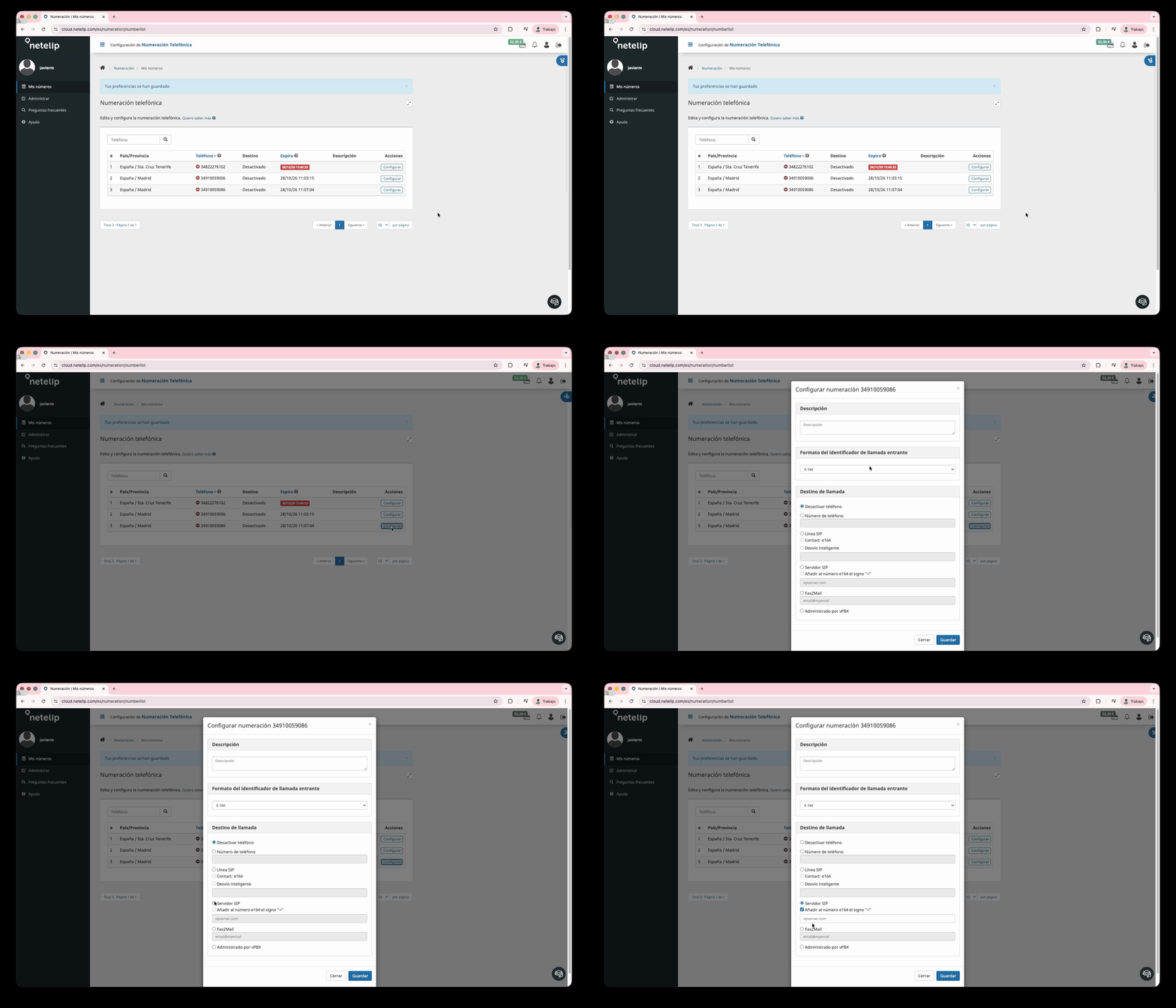
1. In the [My Numbers](https://cloud.netelip.com/es/numeration/numberlist) list, click the configure button.
2. In the options list, select *SIP Server* and enable the option *Add the "+" sign to the e164 number*.
3. In the text field that becomes enabled after the previous step, enter sip.diga.io
Make sure to enable the "Add the '+' sign to the e164 number" option so that calls are routed correctly.
Now that the number is configured with your Elastic SIP trunking, you need to import the number into Diga so we know how to route the calls.
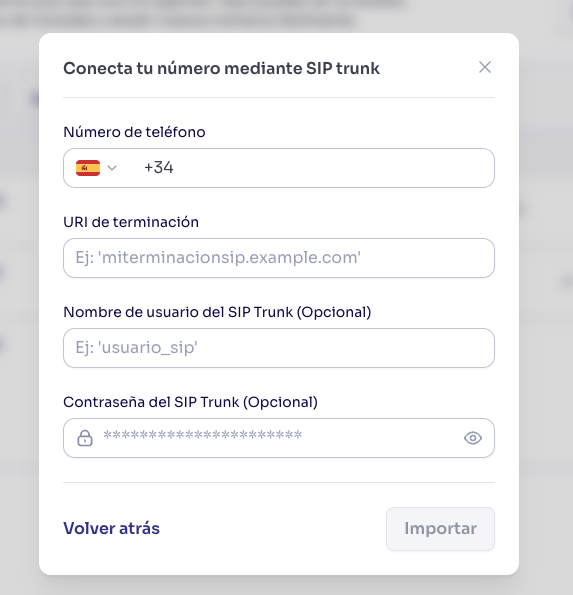
To enable outbound calls, you'll need to provide the username and password that Netelip provides in your [private panel](https://cloud.netelip.com/es/sipline/configurator/qr). You can find the Termination URI in this panel next to the *Server* label.
You can also import numbers programmatically via the [Import Number API](/api-reference/phones/import-phone-numbers).
Once the number is imported, you can make and receive calls with this number just like with a number purchased on Diga. It will appear in your dashboard and you can make calls directly from it.
## Common Issues
**Check the forwarding configuration in Netelip**
Make sure you've correctly configured the forwarding to `sip.diga.io` in the Netelip panel. Verify that the "Add the '+' sign to the e164 number" option is enabled.
**Verify the number is correctly imported in Diga**
Make sure the number you've imported in Diga matches exactly the number configured in Netelip, including the international format.
**Check your SIP Termination URI**
If there's a space, remove it.
**Verify you've entered the same phone number in Diga and Netelip**
When importing the number in Diga, make sure the phone number you've entered is exactly the same as the one configured in Netelip.
**Check your username and credentials**
Make sure you've entered the correct username and credentials that appear in the configuration dialog.
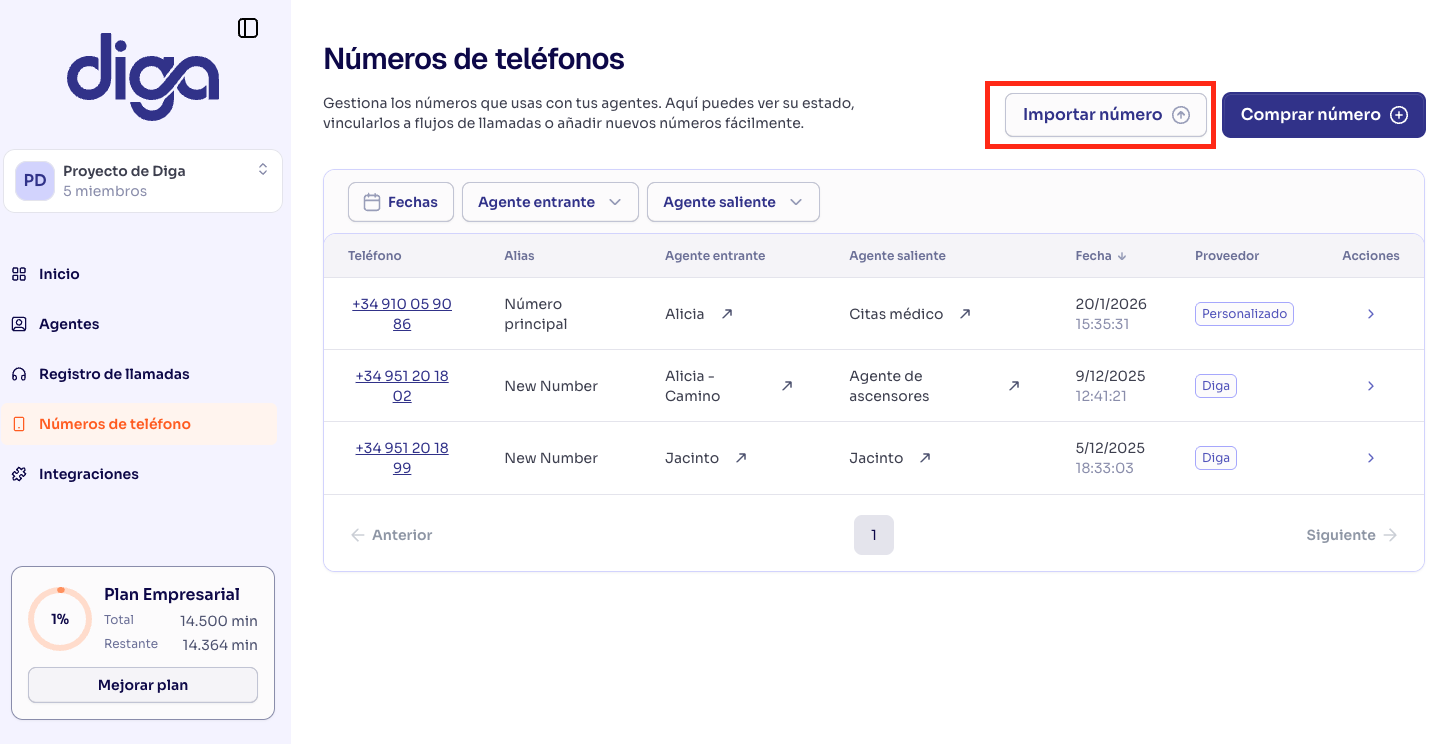 To enable outbound calls, you'll need to provide the username and password that Netelip provides in your [private panel](https://cloud.netelip.com/es/sipline/configurator/qr). You can find the Termination URI in this panel next to the *Server* label.
 You can also import numbers programmatically via the [Import Number API](/api-reference/phones/import-phone-numbers).
Once the number is imported, you can make and receive calls with this number just like with a number purchased on Diga. It will appear in your dashboard and you can make calls directly from it.
You can also import numbers programmatically via the [Import Number API](/api-reference/phones/import-phone-numbers).
Once the number is imported, you can make and receive calls with this number just like with a number purchased on Diga. It will appear in your dashboard and you can make calls directly from it.