> ## Documentation Index
> Fetch the complete documentation index at: https://docs.diga.io/llms.txt
> Use this file to discover all available pages before exploring further.
# Call Monitoring
> Review and analyze all calls made by your agents in real-time
## Call Log
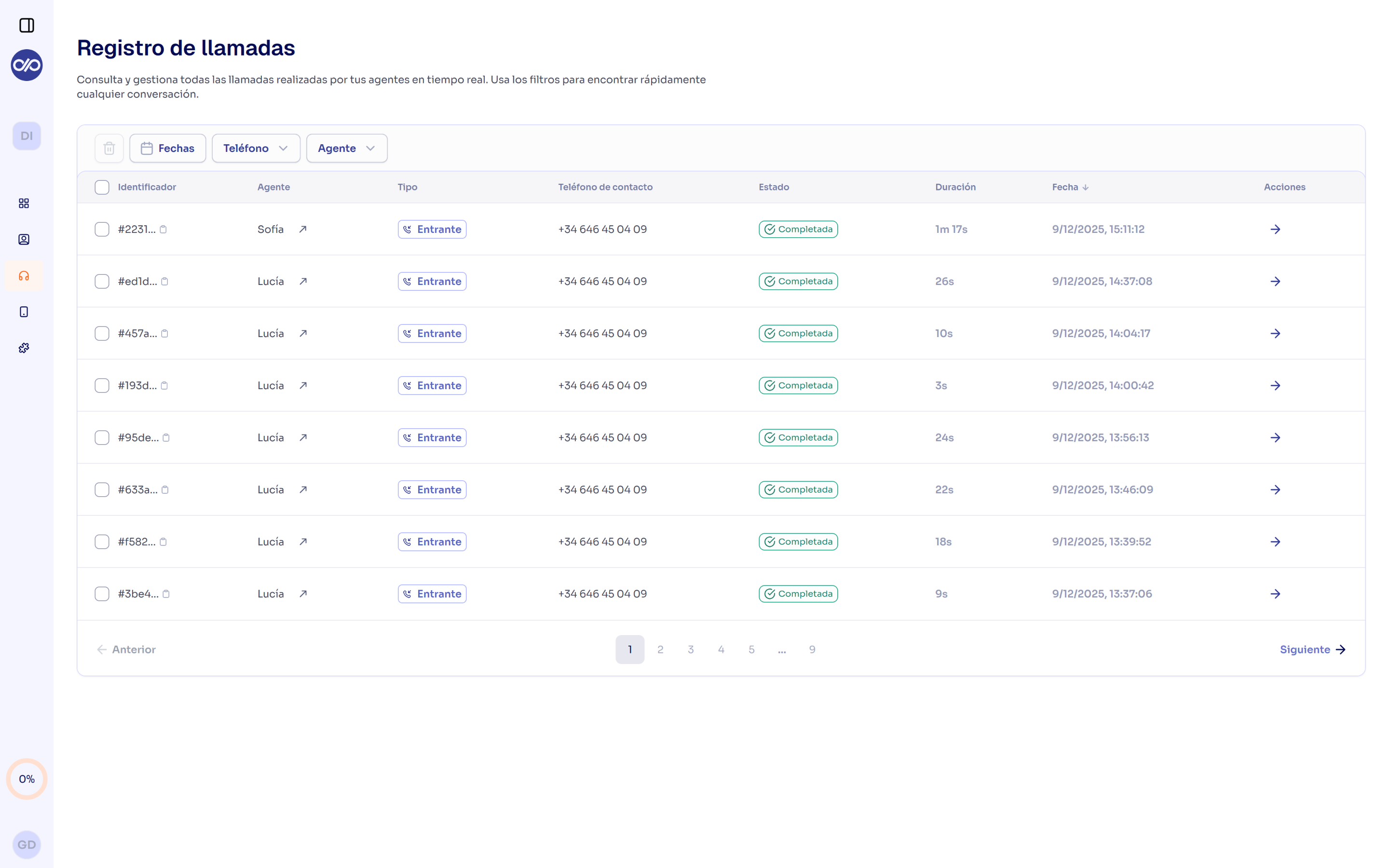
The call log allows you to review and manage all calls made by your agents in real-time. Use filters to quickly find any conversation.
### Access the Log
To access the call log, simply navigate to the **Call Log** section in the left panel. There you will find a table with all calls made by your agents.
### Table Information
Each log entry shows:
| Field | Description |
| ----------------- | ----------------------------------------------------- |
| **Identifier** | Unique call ID (e.g., `#ef52...`) with copy option |
| **Agent** | Name of the agent that handled the call |
| **Type** | Indicates if the call was **Inbound** or **Outbound** |
| **Contact phone** | Customer or contact number |
| **Status** | Current call status |
| **Duration** | Total conversation time |
| **Date** | Exact date and time of the call |
| **Actions** | Link to view full details |
 ### Call States
Calls can be in different states:
The call ended successfully. You can access the recording and full transcription.
The outbound call is in the dialing process, waiting for the contact to answer.
The call is currently active.
The contact did not answer the call.
The call could not be completed due to a technical error.
## Call Details
By clicking on a call, you access its detailed view with all conversation information.
### General Information
At the top you will find:
* **Call ID**: Full unique identifier with copy option
* **Status**: Badge indicating if the call is completed, in progress, etc.
* **Date and time**: Exact moment the call was made
* **Agent**: Name of the agent that handled it
* **Type**: Whether it was inbound or outbound
* **Duration**: Total conversation time
### Contact Information
Contact name if available in your CRM or integrations. Shows "Unknown" if no information.
Indicates how the call ended: "Customer hung up", "Agent finished", "Transferred", etc.
### Audio Player
Listen to the full call recording:
* **Playback controls**: Play, pause, and progress bar
* **Volume control**: Adjust audio level
* **Time indicator**: Shows current time and total duration
* **Download**: Option to download the audio file
Recordings are stored securely and are available for 90 days. You can download them for permanent archiving.
### Call Transcription
The transcription shows the full conversation in chat format:
**Transcription format:**
* **Contact** (left): Customer messages in bubbles aligned to the left
* **Agent** (right): Agent responses in bubbles aligned to the right
* **Timestamps**: Each message includes the exact time
**Transcription example:**
```
Contact - Friday, 12:00
"Can you hear me?"
Agent - Friday, 12:00
"Hello, I'm Natalia, your virtual nurse from the Cardiac
Insufficiency Unit at the Hospital, how are you?"
Contact - Friday, 12:00
"Hello, Natalia, I'm doing great."
Agent - Friday, 12:00
"I'm very glad to hear that. Can you tell me your name
to confirm it in your file?"
```
### Call States
Calls can be in different states:
The call ended successfully. You can access the recording and full transcription.
The outbound call is in the dialing process, waiting for the contact to answer.
The call is currently active.
The contact did not answer the call.
The call could not be completed due to a technical error.
## Call Details
By clicking on a call, you access its detailed view with all conversation information.
### General Information
At the top you will find:
* **Call ID**: Full unique identifier with copy option
* **Status**: Badge indicating if the call is completed, in progress, etc.
* **Date and time**: Exact moment the call was made
* **Agent**: Name of the agent that handled it
* **Type**: Whether it was inbound or outbound
* **Duration**: Total conversation time
### Contact Information
Contact name if available in your CRM or integrations. Shows "Unknown" if no information.
Indicates how the call ended: "Customer hung up", "Agent finished", "Transferred", etc.
### Audio Player
Listen to the full call recording:
* **Playback controls**: Play, pause, and progress bar
* **Volume control**: Adjust audio level
* **Time indicator**: Shows current time and total duration
* **Download**: Option to download the audio file
Recordings are stored securely and are available for 90 days. You can download them for permanent archiving.
### Call Transcription
The transcription shows the full conversation in chat format:
**Transcription format:**
* **Contact** (left): Customer messages in bubbles aligned to the left
* **Agent** (right): Agent responses in bubbles aligned to the right
* **Timestamps**: Each message includes the exact time
**Transcription example:**
```
Contact - Friday, 12:00
"Can you hear me?"
Agent - Friday, 12:00
"Hello, I'm Natalia, your virtual nurse from the Cardiac
Insufficiency Unit at the Hospital, how are you?"
Contact - Friday, 12:00
"Hello, Natalia, I'm doing great."
Agent - Friday, 12:00
"I'm very glad to hear that. Can you tell me your name
to confirm it in your file?"
```