> ## Documentation Index
> Fetch the complete documentation index at: https://docs.diga.io/llms.txt
> Use this file to discover all available pages before exploring further.
# Pre-call Flows
> Run a workflow before the conversation starts to validate, personalize, and control each call
## What are Pre-call Flows?
A pre-call flow is a workflow that runs **the moment a call starts, before the agent says its first word**. The agent waits for the flow to finish and uses its result to shape the conversation that's about to happen.
This lets you prepare each call with fresh, up-to-date information:
* **Look up the caller** in your CRM or database and greet them by name
* **Inject context** into the agent's prompt for this specific call
* **Set dynamic variables** the agent will use throughout the conversation
* **Gate the call**: decide whether it should continue at all (for example, block a number that isn't on your allowlist)
Pre-call flows are the opposite end of the call from [post-call flows](/en/build/flows/introduction#post-call). A pre-call flow runs **before** the agent greets; a post-call flow runs **after** the call ends.
Don't confuse **Pre-call** flows with **Call launcher** flows. A pre-call flow runs *inside* a call that is already starting, to prepare it. A [call launcher](/en/build/flows/diga-piece#make-call) uses the **Make Call** action to *start* a brand-new outbound call from an external event.
## How it works
When a call comes in (or an outbound call connects), Diga runs every pre-call flow assigned to the agent, waits for them to respond, applies the result, and only then lets the agent begin:
A caller dials your number, or an outbound call is placed. The agent does not greet yet.
Diga sends the call data to each assigned pre-call flow and waits for a response. Your flow can query any external service, run logic, and decide what the agent should know.
Each flow ends with the **Return Call Data** action, sending back an optional prompt addition and a set of dynamic variables.
Diga merges the returned data into the call and the agent greets the caller, now armed with the prompt and variables your flow provided.
The caller doesn't hear anything during this step. On inbound and web calls there's a brief silent moment while the flow runs; on outbound calls the flows run before the number is dialed, so the contact's phone simply rings as usual.
## Build a Pre-call Flow
From the **Workflows** section, create a new workflow (from scratch or a template). See [Creating Workflows](/en/build/flows/creating-workflows).
Choose the **Diga** piece and select the **Pre-Call** trigger. This tells Diga to run the flow at the start of a call and wait for its result.
The Pre-Call trigger has two settings:
| Field | Description |
| ------------------------- | ------------------------------------------------------------------------------------------------------------------------------------------------------------------ |
| **Timeout (seconds)** | Maximum time the agent waits for this flow before continuing (or aborting). Defaults to **30 seconds** and is capped at **55 seconds**. |
| **Abort call on failure** | If enabled, the call is hung up when this flow fails, times out, or returns invalid data. If disabled (the default), the call continues without the flow's output. |
Add any actions you need: query a database, call your CRM, run a condition, transform data. Use the call data from the trigger (such as the caller's phone number) to look up the right record.
The **last** step must be the Diga **Return Call Data** action. This is what sends the prompt addition and dynamic variables back to the agent.
The flow **must** end with **Return Call Data**. The generic **Respond** piece will not work — its response never reaches the agent, and the call will be treated as if the flow failed.
[Publish](/en/build/flows/creating-workflows#draft-vs-published) the workflow and make sure it's **enabled**. Then assign it to an agent (see below).
## The Return Call Data action
This action defines what the flow hands back to the agent. Both fields are optional — use either, both, or neither.
| Field | Description |
| --------------------- | -------------------------------------------------------------------------------------------------------------------------------------------------- |
| **Prompt Addition** | Text appended to the agent's system prompt for this call. May contain `{{variable}}` placeholders. Use it to add per-call instructions or context. |
| **Dynamic Variables** | Key/value pairs merged into the call's [dynamic variables](/en/build/agents/dynamic-variables). They override any value set at the call level. |
### Example
A flow that looks up the caller in a CRM and personalizes the agent:
```
Trigger: Pre-Call
→ Action: Find contact in HubSpot (by phone number)
→ Action: Return Call Data
- Prompt Addition: "You are speaking with a returning premium customer.
Be especially attentive and reference their recent order if relevant."
- Dynamic Variables:
- customer_name: {{step_2.first_name}}
- plan_tier: {{step_2.plan}}
- last_order: {{step_2.last_order_id}}
```
The agent now starts the call already knowing the caller's name, plan, and last order — and you can use `{{customer_name}}`, `{{plan_tier}}`, and `{{last_order}}` anywhere in the prompt, greeting, conversation nodes, or branch conditions.
## Assign Pre-call Flows to an Agent
How you assign a pre-call flow depends on the type of agent.
Open the agent and go to its **Workflows** section. Add the pre-call flow there, the same way you add post-call and during-call flows. Each flow shows a **Pre-call** badge so you can tell them apart.
You can assign **multiple pre-call flows** to the same agent.
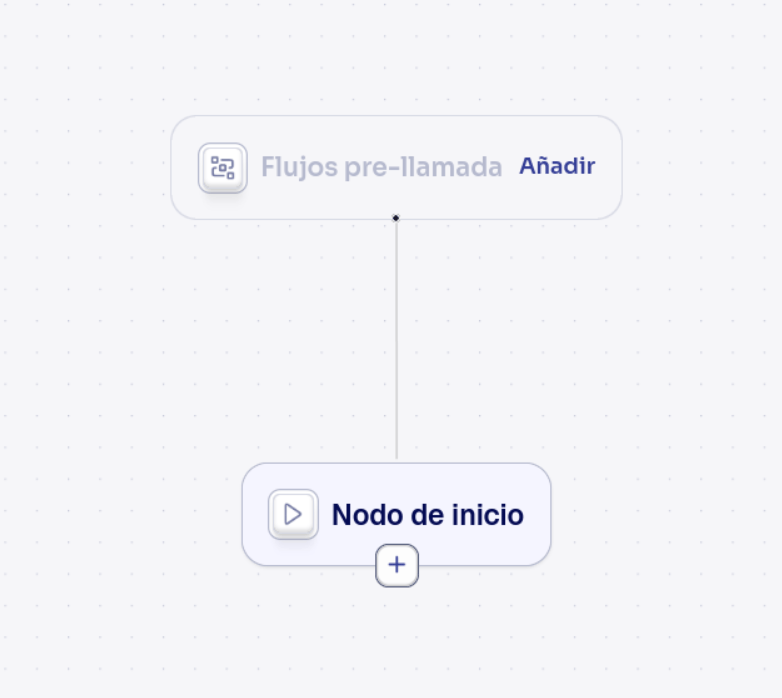
Paths use a dedicated **Pre-call flows** node, shown above the **Start** node in the path editor. Click it (or its **Add** button) to open the picker, which only lists pre-call flows. The flows you add run before the path's start node executes.
See [Node Types](/en/build/agents/conversational-paths/node-types#pre-call-flows) for details.
 Like other flows, pre-call flows are assigned per [agent version](/en/build/agents/version-control). The flow must be **published** and **enabled** before it will run.
### Multiple pre-call flows
You can assign more than one pre-call flow to the same agent or path. They all run, and their results are merged:
* **Prompt additions** are combined together.
* **Dynamic variables** are merged. If two flows set the same variable, the merge follows a consistent order, so later flows override earlier ones.
## Gating a call
Pre-call flows can stop a call before it begins. This is controlled per flow by the **Abort call on failure** setting:
If the flow fails, times out, or returns invalid data, the **call is ended immediately**. On an inbound call the caller is disconnected; on an outbound call the number is never dialed.
Use this when the flow is a hard requirement — for example, an eligibility or allowlist check that must pass before anyone talks to the agent.
If the flow fails or times out, the **call continues normally**, just without that flow's output. The caller notices nothing.
Use this when the flow only enriches the call (nice-to-have context) and shouldn't block the conversation if your external service is slow or down.
Keep pre-call flows fast. The caller is waiting (silently) while they run, and the agent can wait at most 55 seconds. If a lookup is slow, lower the timeout so the call fails fast and continues, or move non-essential work to a [post-call flow](/en/build/flows/introduction#post-call).
## Common use cases
Look up the caller by phone number and return their name and account details as dynamic variables, so the agent can greet them personally from the very first sentence.
Check the caller's status (VIP, overdue invoice, open ticket) and return variables that your [conversational path](/en/build/agents/conversational-paths) uses in its branch conditions to send the call down the right path.
Validate the caller against an allowlist, blocklist, or business hours. Enable **Abort call on failure** so calls that don't qualify never reach the agent.
Return a prompt addition that adapts the agent's behavior for this specific call — for example, switching tone for a complaint, or adding compliance language for certain regions.
## Next Steps
Full reference for the Pre-Call trigger and Return Call Data action.
Use the variables your flow produces across the conversation.
The Pre-call flows node in the conversational path editor.
Build the flow step by step in the visual builder.
Like other flows, pre-call flows are assigned per [agent version](/en/build/agents/version-control). The flow must be **published** and **enabled** before it will run.
### Multiple pre-call flows
You can assign more than one pre-call flow to the same agent or path. They all run, and their results are merged:
* **Prompt additions** are combined together.
* **Dynamic variables** are merged. If two flows set the same variable, the merge follows a consistent order, so later flows override earlier ones.
## Gating a call
Pre-call flows can stop a call before it begins. This is controlled per flow by the **Abort call on failure** setting:
If the flow fails, times out, or returns invalid data, the **call is ended immediately**. On an inbound call the caller is disconnected; on an outbound call the number is never dialed.
Use this when the flow is a hard requirement — for example, an eligibility or allowlist check that must pass before anyone talks to the agent.
If the flow fails or times out, the **call continues normally**, just without that flow's output. The caller notices nothing.
Use this when the flow only enriches the call (nice-to-have context) and shouldn't block the conversation if your external service is slow or down.
Keep pre-call flows fast. The caller is waiting (silently) while they run, and the agent can wait at most 55 seconds. If a lookup is slow, lower the timeout so the call fails fast and continues, or move non-essential work to a [post-call flow](/en/build/flows/introduction#post-call).
## Common use cases
Look up the caller by phone number and return their name and account details as dynamic variables, so the agent can greet them personally from the very first sentence.
Check the caller's status (VIP, overdue invoice, open ticket) and return variables that your [conversational path](/en/build/agents/conversational-paths) uses in its branch conditions to send the call down the right path.
Validate the caller against an allowlist, blocklist, or business hours. Enable **Abort call on failure** so calls that don't qualify never reach the agent.
Return a prompt addition that adapts the agent's behavior for this specific call — for example, switching tone for a complaint, or adding compliance language for certain regions.
## Next Steps
Full reference for the Pre-Call trigger and Return Call Data action.
Use the variables your flow produces across the conversation.
The Pre-call flows node in the conversational path editor.
Build the flow step by step in the visual builder.