> ## Documentation Index
> Fetch the complete documentation index at: https://docs.diga.io/llms.txt
> Use this file to discover all available pages before exploring further.
# Assign Workflows to Agents
> Connect your workflows with specific agents so they execute during or after calls
## Why Assign Workflows?
Workflows with Diga triggers (Pre-Call, Call Finished, and Function Call) only execute for agents they're assigned to. This lets you:
* Use different workflows for different agents
* Control which automations execute for each agent
* Test workflows with a specific agent before applying them to others
This page applies to **single-prompt agents** only. If your agent uses [conversational paths](/en/build/agents/conversational-paths), workflows are assigned directly in the path editor instead — during-call and post-call flows through [flow nodes](/en/build/agents/conversational-paths/node-types#flow-node), and pre-call flows through the [Pre-call flows node](/en/build/agents/conversational-paths/node-types#pre-call-flows).
**Prerequisite**: The workflow must be **published** and **enabled** before assigning it to an agent. If you need to create a workflow first, see [Creating Workflows](/en/build/flows/creating-workflows).
## Assigning a Workflow
From the dashboard, go to the **Agents** section and select the agent you want to assign workflows to.
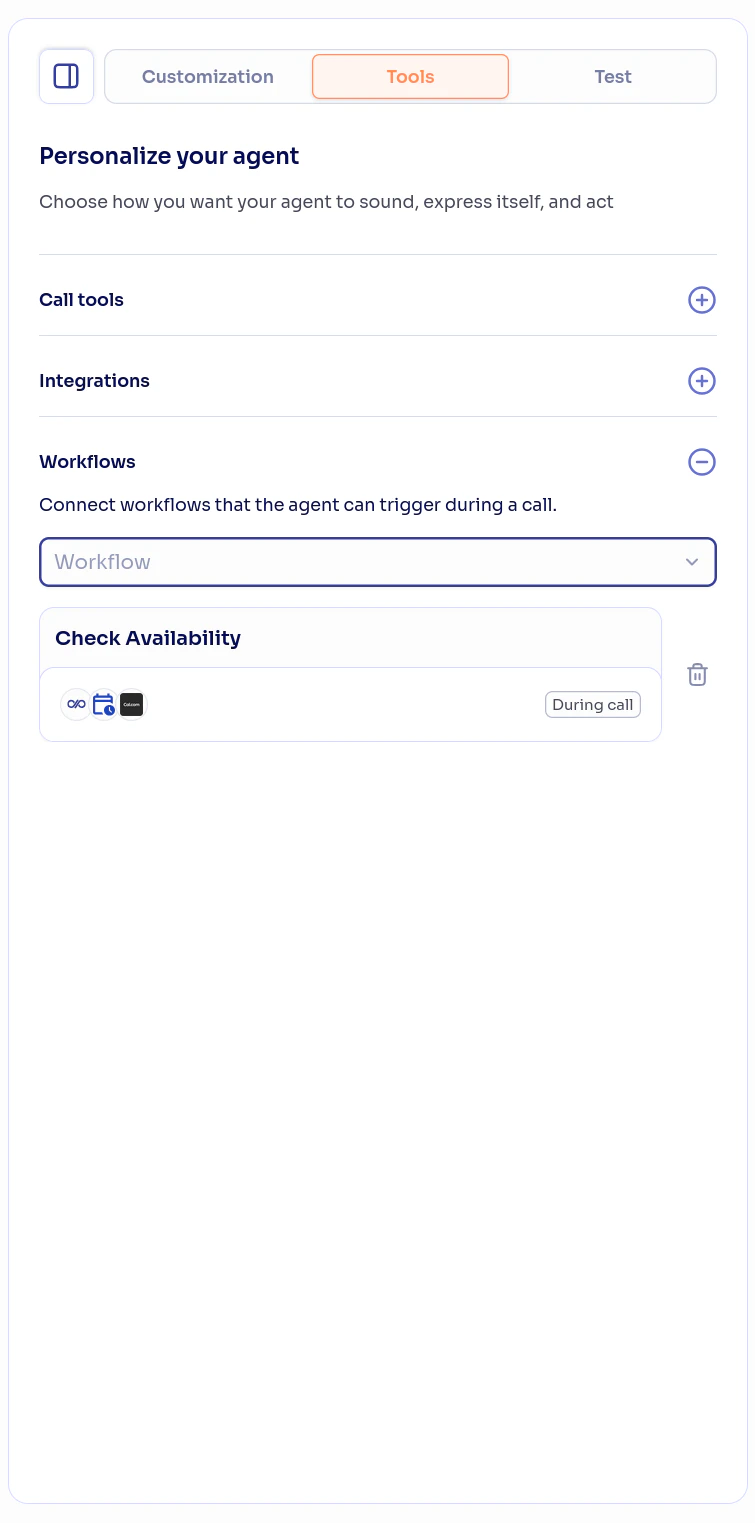
In the agent configuration, find the **Workflows** section. Here you'll see currently assigned workflows and can add new ones.
 Select the workflows you want to run before each call starts. They appear with a **Pre-call** badge. Pre-call flows run before the agent greets and can personalize the prompt, set dynamic variables, or block the call. You can assign **multiple pre-call workflows** to the same agent.
For how they work, see [Pre-call Flows](/en/build/flows/pre-call-flows).
Select the workflows you want to execute when this agent's calls end. You can assign **multiple post-call workflows** to the same agent — all of them will execute when the call ends.
For how they work, see [Post-call Flows](/en/build/flows/post-call-flows).
Select the workflows you want the agent to use as tools during conversations. You can assign **multiple during-call workflows** to the same agent.
Each during-call workflow appears as an available tool for the agent. The agent will decide which one to use based on the conversation context and the description you configured in the Function Call trigger.
For how they work, see [During-call Flows](/en/build/flows/during-call-flows).
Changes are saved automatically. Assigned workflows will be active on the agent's next call.
## Post-call vs During call
| Feature | Post-call | During call |
| ---------------------------- | -------------------- | ----------------------------------- |
| **When it executes** | When the call ends | In the middle of the conversation |
| **Quantity per agent** | Multiple | Multiple |
| **Agent waits for response** | No | Yes |
| **User notices anything** | No, it's transparent | Yes, the agent may mention the wait |
| **Trigger** | Call Finished | Function Call |
## Workflows and Agent Versions
Workflows are assigned to **specific agent versions**. This means:
* Different versions of the same agent can have different workflows
* You can test new workflows on a development version without affecting the production version
* When creating a new version, assigned workflows are not automatically copied
Use [version control](/en/build/agents/version-control) together with workflow assignment to safely test new automations.
## Verifying the Assignment
After assigning workflows, verify everything works correctly:
1. Make a [test call](/en/build/agents/test-calls) with the agent
2. For **post-call** workflows: verify the action executed after hanging up (email sent, record created, etc.)
3. For **during-call** workflows: during the call, ask the agent to execute the action (e.g., "check my availability for tomorrow")
4. Check the workflow execution history to confirm it ran successfully
## Next Steps
Learn about the available triggers and actions in detail.
Test your agents with assigned workflows.
Create new workflows for your agents.
Manage agent versions with different workflows.
Select the workflows you want to run before each call starts. They appear with a **Pre-call** badge. Pre-call flows run before the agent greets and can personalize the prompt, set dynamic variables, or block the call. You can assign **multiple pre-call workflows** to the same agent.
For how they work, see [Pre-call Flows](/en/build/flows/pre-call-flows).
Select the workflows you want to execute when this agent's calls end. You can assign **multiple post-call workflows** to the same agent — all of them will execute when the call ends.
For how they work, see [Post-call Flows](/en/build/flows/post-call-flows).
Select the workflows you want the agent to use as tools during conversations. You can assign **multiple during-call workflows** to the same agent.
Each during-call workflow appears as an available tool for the agent. The agent will decide which one to use based on the conversation context and the description you configured in the Function Call trigger.
For how they work, see [During-call Flows](/en/build/flows/during-call-flows).
Changes are saved automatically. Assigned workflows will be active on the agent's next call.
## Post-call vs During call
| Feature | Post-call | During call |
| ---------------------------- | -------------------- | ----------------------------------- |
| **When it executes** | When the call ends | In the middle of the conversation |
| **Quantity per agent** | Multiple | Multiple |
| **Agent waits for response** | No | Yes |
| **User notices anything** | No, it's transparent | Yes, the agent may mention the wait |
| **Trigger** | Call Finished | Function Call |
## Workflows and Agent Versions
Workflows are assigned to **specific agent versions**. This means:
* Different versions of the same agent can have different workflows
* You can test new workflows on a development version without affecting the production version
* When creating a new version, assigned workflows are not automatically copied
Use [version control](/en/build/agents/version-control) together with workflow assignment to safely test new automations.
## Verifying the Assignment
After assigning workflows, verify everything works correctly:
1. Make a [test call](/en/build/agents/test-calls) with the agent
2. For **post-call** workflows: verify the action executed after hanging up (email sent, record created, etc.)
3. For **during-call** workflows: during the call, ask the agent to execute the action (e.g., "check my availability for tomorrow")
4. Check the workflow execution history to confirm it ran successfully
## Next Steps
Learn about the available triggers and actions in detail.
Test your agents with assigned workflows.
Create new workflows for your agents.
Manage agent versions with different workflows.