> ## Documentation Index
> Fetch the complete documentation index at: https://docs.diga.io/llms.txt
> Use this file to discover all available pages before exploring further.
# Dynamic Variables
> Personalize your agent's responses with contextual information using dynamic variables
## Introduction
Dynamic variables allow you to inject personalized data into your agent's responses for each specific call. Using the `{{variable_name}}` syntax, you can create agents that adapt to different contexts while maintaining consistent conversation flows.
### Common use cases
* **Personalized greetings**: "Hello `{{customer_name}}`, I'm calling to confirm your interest in the `{{form_type}}` form"
* **Contextual responses**: "I see you're calling about order `{{order_number}}`"
* **Time-sensitive information**: Reference `{{appointment_date}}` or `{{deadline}}` or `{{current_time}}`
### Where variables work
Dynamic variables can be used in:
* **Agent prompt**: Instructions and agent personality
* **Initial greeting**: Welcome message to the user
* **Conversation nodes**: Instructions in a specific node
* **Branch conditions**: The conditions that route between nodes in a [conversational path](/en/build/agents/conversational-paths)
* **Integrations and flows**: Pass variable values into [flows](/en/build/flows/introduction) and their integrations to send personalized data to external systems
## Add and test variables
Dynamic variables are placeholders surrounded by double curly braces. For example:
```text theme={null}
Hello {{customer_name}}, I understand you're interested in {{product_name}}.
How can I help you today?
```
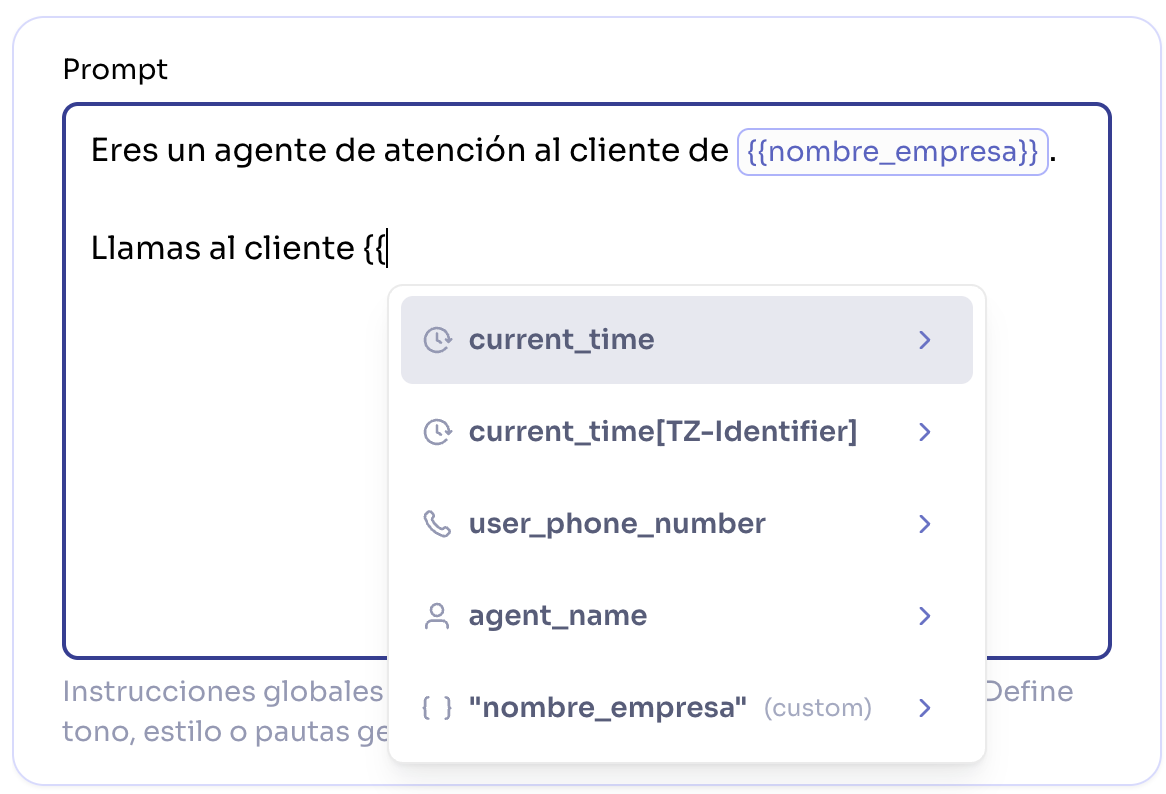
When typing in the prompt or greeting editor, typing `{{` will display a menu with available variables.
 Before publishing, you can test your variables using the test panel. The values you enter here will simulate the data you'll receive in production.
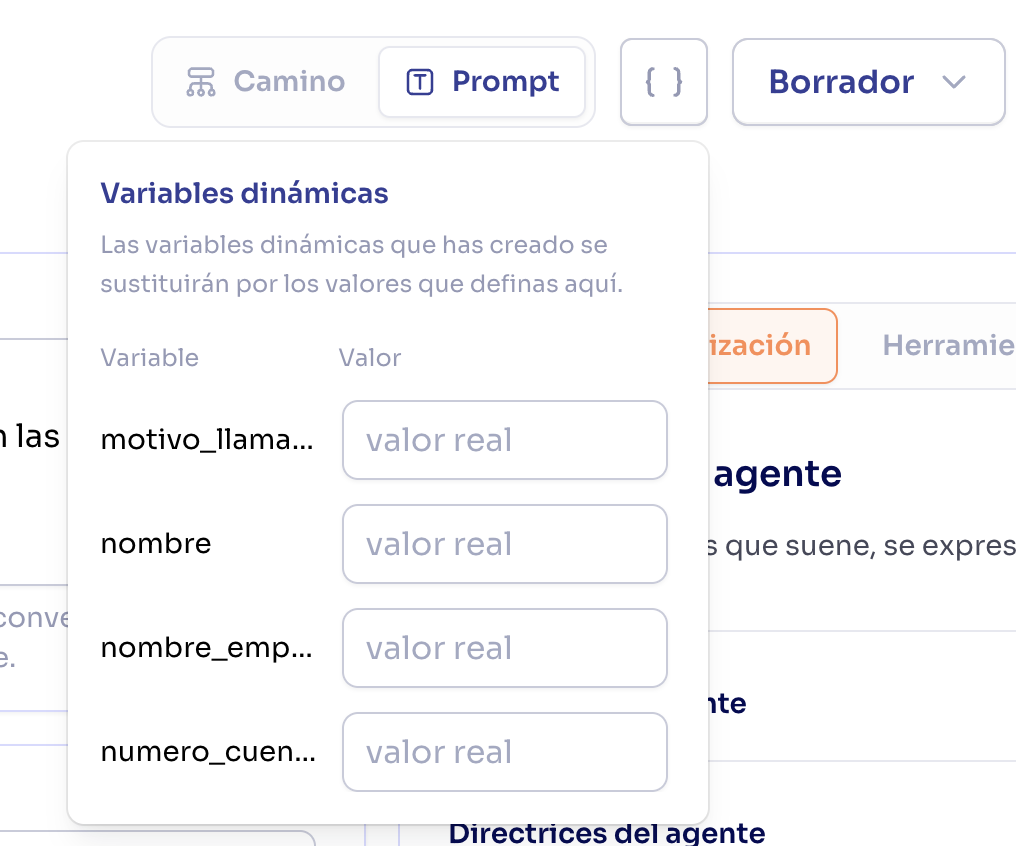 The values you set in that panel when creating a version will be used as defaults if no other values are passed when making the call.
### For outbound calls
When creating a call using the API, include your variables in the `dynamic_variables` field:
```json theme={null}
{
"from_number": "+14155551234",
"to_number": "+14155555678",
"dynamic_variables": {
"customer_name": "John Smith",
"order_number": "ORD-12345",
"delivery_date": "tomorrow at 3 PM"
}
}
```
### For inbound calls
It will use the default value you set in the published agent version.
**Important:** All values in `dynamic_variables` must be strings (text). Numbers, booleans, or other data types are not supported.
## System variables
Diga automatically provides these system variables - no configuration required:
| Variable | Description | Example |
| ---------------------------- | --------------------------------- | --------------------------------------- |
| `{{agent_name}}` | Configured agent name | "Sales Assistant" |
| `{{user_phone_number}}` | User's phone number | "+14155551234" |
| `{{current_time}}` | Current time in UTC | "Friday, January 10, 2025 14:30:00 UTC" |
| `{{current_time[timezone]}}` | Current time in specific timezone | "Friday, January 10, 2025 09:30:00 EST" |
### Timezone examples
To get the time in a specific timezone, use the syntax `{{current_time[timezone]}}`:
```text theme={null}
Current time in New York: {{current_time[America/New_York]}}
Current time in Los Angeles: {{current_time[America/Los_Angeles]}}
Current time in London: {{current_time[Europe/London]}}
Current time in Tokyo: {{current_time[Asia/Tokyo]}}
```
Use valid IANA timezone identifiers like `Europe/London`, `America/New_York`, etc. You can find the complete list on [Wikipedia](https://en.wikipedia.org/wiki/List_of_tz_database_time_zones).
## Variables from workflows
[Pre-call flows](/en/build/flows/pre-call-flows) can set dynamic variables for a call. For example, a flow that looks up the caller in your CRM can return their name, plan, or account status, and those values become variables you can use anywhere in the agent.
When a pre-call flow provides a variable, it appears in the agent's **dynamic variables** panel as **read-only**, labeled **"Provided by \[flow name]"**. You don't set its value here — the flow fills it in at call time. To change what the flow returns, use the edit shortcut next to it to jump to the flow.
These variables also show up in the `{{` autocomplete in your prompt and greeting editors, alongside your own variables and the system ones, so you can insert them without typing them by hand.
A during-call workflow parameter can also be filled from a dynamic variable instead of being extracted by the agent — useful when you already have the value (for example, from a pre-call flow) and don't want the agent to ask for it again. See [Filling parameters from dynamic variables](/en/build/flows/during-call-flows#filling-parameters-from-dynamic-variables).
## Variable precedence
When the same variable is defined in multiple places, the following priority applies (highest to lowest):
1. **Pre-call flow variables** (highest priority): Values returned by a [pre-call flow](/en/build/flows/pre-call-flows) override everything else
2. **Call variables**: Specific values for each call, for example passed via the API
3. **Agent variables**: Default values configured in the agent. These are the variables previously configured in the variables panel.
This means you can set default values at the agent level and override them for specific calls when needed.
### Precedence example
```text theme={null}
# Agent configuration
dynamic_variables: {
"company": "TechCorp",
"department": "Sales"
}
# Call variables
dynamic_variables: {
"company": "ClientXYZ",
"customer": "John Smith"
}
# Final result (values the agent will use)
{
"agent_name": "Virtual Assistant", # System
"user_phone_number": "+14155551234", # System
"company": "ClientXYZ", # Call overrides agent
"department": "Sales", # Agent (not overridden)
"customer": "John Smith" # Call
}
```
## Best practices
Configure default values at the agent level for frequently used variables. This prevents your prompts from showing empty variables.
Always test your agent both with defined variables and without them to ensure it handles both cases correctly.
Avoid storing sensitive information like passwords, API keys, or financial data in dynamic variables:
```text theme={null}
# Avoid
{{api_key}}
{{credit_card_number}}
# Better: use only identifiers
{{customer_id}}
{{order_reference}}
```
## Usage examples
### Customer service agent
```text theme={null}
You are a customer service agent for {{company_name}}.
You are making an outbound call to customer {{customer_name}} with account number {{account_number}} to get more information about their support inquiry.
Greet them by name and help them with their inquiry about {{call_reason}}.
```
### Appointment reminder
```text theme={null}
You are an assistant for {{clinic_name}} calling to confirm an appointment.
Appointment information:
- Patient: {{patient_name}}
- Date: {{appointment_date}}
- Time: {{appointment_time}}
- Doctor: {{doctor_name}}
- Current date: {{current_time}}
Confirm that the patient can attend and remind them to arrive 15 minutes early.
```
### Order tracking
```text theme={null}
You are a support agent for {{store_name}}.
Order information:
- Order number: {{order_number}}
- Current status: {{order_status}}
- Estimated delivery date: {{delivery_date}}
Help the customer with any questions about their order.
The current time is {{current_time[America/New_York]}}.
```
The values you set in that panel when creating a version will be used as defaults if no other values are passed when making the call.
### For outbound calls
When creating a call using the API, include your variables in the `dynamic_variables` field:
```json theme={null}
{
"from_number": "+14155551234",
"to_number": "+14155555678",
"dynamic_variables": {
"customer_name": "John Smith",
"order_number": "ORD-12345",
"delivery_date": "tomorrow at 3 PM"
}
}
```
### For inbound calls
It will use the default value you set in the published agent version.
**Important:** All values in `dynamic_variables` must be strings (text). Numbers, booleans, or other data types are not supported.
## System variables
Diga automatically provides these system variables - no configuration required:
| Variable | Description | Example |
| ---------------------------- | --------------------------------- | --------------------------------------- |
| `{{agent_name}}` | Configured agent name | "Sales Assistant" |
| `{{user_phone_number}}` | User's phone number | "+14155551234" |
| `{{current_time}}` | Current time in UTC | "Friday, January 10, 2025 14:30:00 UTC" |
| `{{current_time[timezone]}}` | Current time in specific timezone | "Friday, January 10, 2025 09:30:00 EST" |
### Timezone examples
To get the time in a specific timezone, use the syntax `{{current_time[timezone]}}`:
```text theme={null}
Current time in New York: {{current_time[America/New_York]}}
Current time in Los Angeles: {{current_time[America/Los_Angeles]}}
Current time in London: {{current_time[Europe/London]}}
Current time in Tokyo: {{current_time[Asia/Tokyo]}}
```
Use valid IANA timezone identifiers like `Europe/London`, `America/New_York`, etc. You can find the complete list on [Wikipedia](https://en.wikipedia.org/wiki/List_of_tz_database_time_zones).
## Variables from workflows
[Pre-call flows](/en/build/flows/pre-call-flows) can set dynamic variables for a call. For example, a flow that looks up the caller in your CRM can return their name, plan, or account status, and those values become variables you can use anywhere in the agent.
When a pre-call flow provides a variable, it appears in the agent's **dynamic variables** panel as **read-only**, labeled **"Provided by \[flow name]"**. You don't set its value here — the flow fills it in at call time. To change what the flow returns, use the edit shortcut next to it to jump to the flow.
These variables also show up in the `{{` autocomplete in your prompt and greeting editors, alongside your own variables and the system ones, so you can insert them without typing them by hand.
A during-call workflow parameter can also be filled from a dynamic variable instead of being extracted by the agent — useful when you already have the value (for example, from a pre-call flow) and don't want the agent to ask for it again. See [Filling parameters from dynamic variables](/en/build/flows/during-call-flows#filling-parameters-from-dynamic-variables).
## Variable precedence
When the same variable is defined in multiple places, the following priority applies (highest to lowest):
1. **Pre-call flow variables** (highest priority): Values returned by a [pre-call flow](/en/build/flows/pre-call-flows) override everything else
2. **Call variables**: Specific values for each call, for example passed via the API
3. **Agent variables**: Default values configured in the agent. These are the variables previously configured in the variables panel.
This means you can set default values at the agent level and override them for specific calls when needed.
### Precedence example
```text theme={null}
# Agent configuration
dynamic_variables: {
"company": "TechCorp",
"department": "Sales"
}
# Call variables
dynamic_variables: {
"company": "ClientXYZ",
"customer": "John Smith"
}
# Final result (values the agent will use)
{
"agent_name": "Virtual Assistant", # System
"user_phone_number": "+14155551234", # System
"company": "ClientXYZ", # Call overrides agent
"department": "Sales", # Agent (not overridden)
"customer": "John Smith" # Call
}
```
## Best practices
Configure default values at the agent level for frequently used variables. This prevents your prompts from showing empty variables.
Always test your agent both with defined variables and without them to ensure it handles both cases correctly.
Avoid storing sensitive information like passwords, API keys, or financial data in dynamic variables:
```text theme={null}
# Avoid
{{api_key}}
{{credit_card_number}}
# Better: use only identifiers
{{customer_id}}
{{order_reference}}
```
## Usage examples
### Customer service agent
```text theme={null}
You are a customer service agent for {{company_name}}.
You are making an outbound call to customer {{customer_name}} with account number {{account_number}} to get more information about their support inquiry.
Greet them by name and help them with their inquiry about {{call_reason}}.
```
### Appointment reminder
```text theme={null}
You are an assistant for {{clinic_name}} calling to confirm an appointment.
Appointment information:
- Patient: {{patient_name}}
- Date: {{appointment_date}}
- Time: {{appointment_time}}
- Doctor: {{doctor_name}}
- Current date: {{current_time}}
Confirm that the patient can attend and remind them to arrive 15 minutes early.
```
### Order tracking
```text theme={null}
You are a support agent for {{store_name}}.
Order information:
- Order number: {{order_number}}
- Current status: {{order_status}}
- Estimated delivery date: {{delivery_date}}
Help the customer with any questions about their order.
The current time is {{current_time[America/New_York]}}.
```